サイトアイコン Googleスプレッドシート 完全攻略

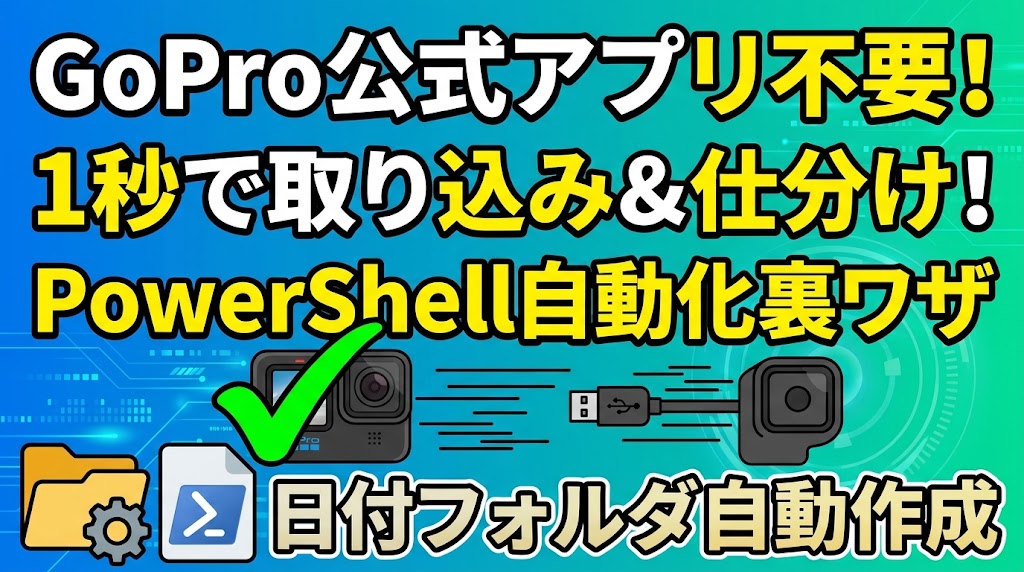
GoPro公式アプリはもう不要!取り込み&仕分けを1秒で終わらせる裏ワザ【PowerShell自動化】

Windows関連

ご訪問ありがとうございます。

Googleシートマスターのひろしです。

https://technical.verybestcbp.com/goprofot

今回は、とっても価値の高い方法をお伝えします。


これを知ることであなたは、

逆に、知らないと

GoProを接続後、ドライブを開いて、フォルダーを開いて拡張子でフィルタリングして、
転送先を開いてコピーするという決まり切った作業を延々続けなくてはいけません。

なので、サクッとマスターして


と答えてあげてください。

前回は、Windows標準のフォトアプリで取り込む方法を
お伝えしました。

GoPro公式アプリはもう不要!フォトで取り込み
  • GoProの動画をQUIKなしで取り込めるようになります。
  • GoProをパソコンに接続するだけで取り込めるようになります。
  • この方法ならUIでできるのでわかりやすいです。

    しかーし取り込み先をPicture以外、ましてや別ドライブに
    するなんてことはできません。

    なので今回は、スクリプトで実現しました。

    このスクリプトを実行すれば、GoProを接続後ワンクリックで

    1.指定のフォルダに日付フォルダを作成し

    2.GoPro内のデータをすべてコピー

    3.GoPro内のデータをすべて削除

    をやってくれます。


    動画はこちら

    準備中

    シートはこちら

    準備中
    *クリックすることでシートが開きます。(コピーしてお使いください)


    GoPro_Import.zip


    GoPro_Import.zip


    スクリプト

    以下の ファイルを

    # =========================================================
    # 【設定エリア】ご自身の環境に合わせて変更してください
    # =========================================================
    
    # 1. 転送先フォルダのルートパス(※末尾に「\日付」が自動作成されます)
    $saveRoot = "I:\素材"
    
    # 2. GoProフォルダ名(通常はそのままでOK)
    $goproFolderName = "100GOPRO"
    
    # =========================================================
    # デスクトップに起動用ショートカットを自動作成(初回のみ)
    # =========================================================
    $desktopPath = [Environment]::GetFolderPath("Desktop")
    $shortcutPath = Join-Path $desktopPath "GoPro取り込み.lnk"
    
    if (!(Test-Path $shortcutPath)) {
    $WshShell = New-Object -ComObject WScript.Shell
    $shortcut = $WshShell.CreateShortcut($shortcutPath)
    $shortcut.TargetPath = "powershell.exe"
    $shortcut.Arguments = "-ExecutionPolicy Bypass -File `"$PSCommandPath`""
    $shortcut.WindowStyle = 1
    $shortcut.Description = "GoPro動画取り込みスクリプト"
    $shortcut.Save()
    Write-Host "デスクトップにショートカットを作成しました!" -ForegroundColor Cyan
    }
    
    # =========================================================
    # 以下、処理コード
    # =========================================================
    
    $today = Get-Date -Format "yyyy-MM-dd"
    $destination = Join-Path $saveRoot $today
    
    if (!(Test-Path $destination)) {
    New-Item -ItemType Directory -Path $destination | Out-Null
    }
    
    $shell = New-Object -ComObject Shell.Application
    $myComputer = $shell.NameSpace(0x11)
    
    # GoProデバイスの検索
    $goproDevice = $myComputer.Items() | Where-Object { $_.Name -like "*GoPro*" }
    
    if (!$goproDevice) {
    Write-Host "GoProが見つかりません。接続を確認してください。" -ForegroundColor Red
    pause
    exit
    }
    
    # 指定フォルダまで探索
    function Get-GoproFolder($item) {
    if ($item.IsFolder) {
    $folder = $item.GetFolder
    if ($item.Name -eq $goproFolderName) { return $item }
    foreach ($subItem in $folder.Items()) {
    $result = Get-GoproFolder $subItem
    if ($result) { return $result }
    }
    }
    return $null
    }
    
    $targetItem = Get-GoproFolder $goproDevice
    
    if ($targetItem) {
    $targetFolder = $targetItem.GetFolder
    $destFolder = $shell.NameSpace($destination)
    $items = $targetFolder.Items()
    
    # 1. MP4のみPCへコピー
    $mp4Files = $items | Where-Object { $_.Name -like "*.MP4" -or $_.Name -like "*.mp4" }
    foreach ($file in $mp4Files) {
    Write-Host "コピー中: $($file.Name)"
    $destFolder.CopyHere($file, 16)
    }
    
    Write-Host "コピーが完了しました。" -ForegroundColor Green
    
    # 2. 転送先(PC)と転送元(GoPro)のフォルダを開く
    Invoke-Item $destination
    
    # MTP用:UI操作でGoProフォルダを表示
    $explorer = New-Object -ComObject Shell.Application
    $explorer.Open($goproDevice.Path)
    
    # 3. 削除前の確認
    $confirmation = Read-Host "GoPro内の全ファイルを削除しますか? (Y/N)"
    
    if ($confirmation -eq 'Y' -or $confirmation -eq 'y') {
    Write-Host "GoPro内を空にしています..." -ForegroundColor Yellow
    $items.Item().InvokeVerb("delete")
    Write-Host "削除処理を実行しました。" -ForegroundColor Green
    } else {
    Write-Host "削除をキャンセルしました。" -ForegroundColor Cyan
    }
    } else {
    Write-Host "$goproFolderName フォルダが見つかりませんでした。" -ForegroundColor Red
    }
    
    pause


    # =========================================================
    # 【設定エリア】ご自身の環境に合わせて変更してください
    # =========================================================
    
    # 1. 転送先フォルダのルートパス(※末尾に「\日付」が自動作成されます)
    $saveRoot = "I:\素材"
    
    # 2. GoProフォルダ名(通常はそのままでOK)
    $goproFolderName = "100GOPRO"
    
    # =========================================================
    # デスクトップに起動用ショートカットを自動作成(初回のみ)
    # =========================================================
    $desktopPath = [Environment]::GetFolderPath("Desktop")
    $shortcutPath = Join-Path $desktopPath "GoPro取り込み.lnk"
    if (!(Test-Path $shortcutPath)) {
    $WshShell = New-Object -ComObject WScript.Shell
    $shortcut = $WshShell.CreateShortcut($shortcutPath)
    $shortcut.TargetPath = "powershell.exe"
    $shortcut.Arguments = "-ExecutionPolicy Bypass -File `"$PSCommandPath`""
    $shortcut.WindowStyle = 1
    $shortcut.Description = "GoPro動画取り込みスクリプト"
    $shortcut.Save()
    Write-Host "デスクトップにショートカットを作成しました!" -ForegroundColor Cyan
    }
    
    # =========================================================
    # 以下、処理コード
    # =========================================================
    
    $today = Get-Date -Format "yyyy-MM-dd"
    $destination = Join-Path $saveRoot $today
    if (!(Test-Path $destination)) {
    New-Item -ItemType Directory -Path $destination | Out-Null
    }
    
    $shell = New-Object -ComObject Shell.Application
    $myComputer = $shell.NameSpace(0x11)
    
    # GoProデバイスの検索
    $goproDevice = $myComputer.Items() | Where-Object { $_.Name -like "*GoPro*" }
    if (!$goproDevice) {
    Write-Host "GoProが見つかりません。接続を確認してください。" -ForegroundColor Red
    pause
    exit
    }
    
    # 指定フォルダまで探索
    function Get-GoproFolder($item) {
    if ($item.IsFolder) {
    $folder = $item.GetFolder
    if ($item.Name -eq $goproFolderName) { return $item }
    foreach ($subItem in $folder.Items()) {
    $result = Get-GoproFolder $subItem
    if ($result) { return $result }
    }
    }
    return $null
    }
    
    $targetItem = Get-GoproFolder $goproDevice
    if ($targetItem) {
    $targetFolder = $targetItem.GetFolder
    $destFolder = $shell.NameSpace($destination)
    $items = $targetFolder.Items()
    
    # 1. MP4のみPCへコピー
    $mp4Files = @($items | Where-Object { $_.Name -like "*.MP4" -or $_.Name -like "*.mp4" })
    
    if ($mp4Files.Count -eq 0) {
    Write-Host "取り込むMP4ファイルがありません。" -ForegroundColor Yellow
    pause
    exit
    }
    
    foreach ($file in $mp4Files) {
    Write-Host "コピー中: $($file.Name)"
    $destFolder.CopyHere($file, 16)
    }
    
    Write-Host "コピー処理が完了しました。ファイルサイズをチェックします..." -ForegroundColor Green
    
    # 2. サイズチェック機能
    $isAllValid = $true
    foreach ($file in $mp4Files) {
    $copiedFilePath = Join-Path $destination $file.Name
    
    if (Test-Path $copiedFilePath) {
    # GoPro側ファイルサイズ(MTPプロパティ)
    $srcSize = $file.Size
    # PC側ファイルサイズ
    $destSize = (Get-Item $copiedFilePath).Length
    
    if ($srcSize -ne $destSize) {
    Write-Host "【エラー】サイズ不一致: $($file.Name) (元: $srcSize / 転送後: $destSize)" -ForegroundColor Red
    $isAllValid = $false
    } else {
    Write-Host "正常チェック完了: $($file.Name)" -ForegroundColor Gray
    }
    } else {
    Write-Host "【エラー】ファイルが存在しません: $($file.Name)" -ForegroundColor Red
    $isAllValid = $false
    }
    }
    
    # 3. 転送先のフォルダを開く
    Invoke-Item $destination
    
    # 4. チェック結果に応じた削除処理
    if ($isAllValid) {
    Write-Host "すべてのファイルのサイズ検証に成功しました。" -ForegroundColor Green
    $confirmation = Read-Host "GoPro内の全ファイルを削除しますか? (Y/N)"
    if ($confirmation -eq 'Y' -or $confirmation -eq 'y') {
    Write-Host "GoPro内を空にしています..." -ForegroundColor Yellow
    $items.Item().InvokeVerb("delete")
    Write-Host "削除処理を実行しました。" -ForegroundColor Green
    } else {
    Write-Host "削除をキャンセルしました。" -ForegroundColor Cyan
    }
    } else {
    Write-Host "【警告】一部の転送に失敗している可能性があるため、自動削除をスキップしました。" -ForegroundColor Red
    Write-Host "手動で転送先フォルダとGoPro内のファイルを確認してください。" -ForegroundColor Red
    }
    
    } else {
    Write-Host "$goproFolderName フォルダが見つかりませんでした。" -ForegroundColor Red
    }
    
    pause


    これを右クリック「PowerSheelで実行」を選択するだけで
    一気にコピーそして削除ができてしまいます。


    ファイルサイズチェック版


    # =========================================================
    # 【設定エリア】ご自身の環境に合わせて変更してください
    # =========================================================
    
    # 1. 転送先フォルダのルートパス(※末尾に「\日付」が自動作成されます)
    $saveRoot = "I:\素材"
    
    # 2. GoProフォルダ名(通常はそのままでOK)
    $goproFolderName = "100GOPRO"
    
    # =========================================================
    # デスクトップに起動用ショートカットを自動作成(初回のみ)
    # =========================================================
    $desktopPath = [Environment]::GetFolderPath("Desktop")
    $shortcutPath = Join-Path $desktopPath "GoPro取り込み.lnk"
    if (!(Test-Path $shortcutPath)) {
    $WshShell = New-Object -ComObject WScript.Shell
    $shortcut = $WshShell.CreateShortcut($shortcutPath)
    $shortcut.TargetPath = "powershell.exe"
    $shortcut.Arguments = "-ExecutionPolicy Bypass -File `"$PSCommandPath`""
    $shortcut.WindowStyle = 1
    $shortcut.Description = "GoPro動画取り込みスクリプト"
    $shortcut.Save()
    Write-Host "デスクトップにショートカットを作成しました!" -ForegroundColor Cyan
    }
    
    # =========================================================
    # 以下、処理コード
    # =========================================================
    
    $today = Get-Date -Format "yyyy-MM-dd"
    $destination = Join-Path $saveRoot $today
    if (!(Test-Path $destination)) {
    New-Item -ItemType Directory -Path $destination | Out-Null
    }
    
    $shell = New-Object -ComObject Shell.Application
    $myComputer = $shell.NameSpace(0x11)
    
    # GoProデバイスの検索
    $goproDevice = $myComputer.Items() | Where-Object { $_.Name -like "*GoPro*" }
    if (!$goproDevice) {
    Write-Host "GoProが見つかりません。接続を確認してください。" -ForegroundColor Red
    pause
    exit
    }
    
    # 指定フォルダまで探索
    function Get-GoproFolder($item) {
    if ($item.IsFolder) {
    $folder = $item.GetFolder
    if ($item.Name -eq $goproFolderName) { return $item }
    foreach ($subItem in $folder.Items()) {
    $result = Get-GoproFolder $subItem
    if ($result) { return $result }
    }
    }
    return $null
    }
    
    $targetItem = Get-GoproFolder $goproDevice
    if ($targetItem) {
    $targetFolder = $targetItem.GetFolder
    $destFolder = $shell.NameSpace($destination)
    $items = $targetFolder.Items()
    
    # 1. MP4のみPCへコピー
    $mp4Files = @($items | Where-Object { $_.Name -like "*.MP4" -or $_.Name -like "*.mp4" })
    
    if ($mp4Files.Count -eq 0) {
    Write-Host "取り込むMP4ファイルがありません。" -ForegroundColor Yellow
    pause
    exit
    }
    
    foreach ($file in $mp4Files) {
    Write-Host "コピー中: $($file.Name)"
    $destFolder.CopyHere($file, 16)
    }
    
    Write-Host "コピー処理が完了しました。ファイルサイズをチェックします..." -ForegroundColor Green
    
    # 2. サイズチェック機能
    $isAllValid = $true
    foreach ($file in $mp4Files) {
    $copiedFilePath = Join-Path $destination $file.Name
    
    if (Test-Path $copiedFilePath) {
    # GoPro側ファイルサイズ(MTPプロパティ)
    $srcSize = $file.Size
    # PC側ファイルサイズ
    $destSize = (Get-Item $copiedFilePath).Length
    
    if ($srcSize -ne $destSize) {
    Write-Host "【エラー】サイズ不一致: $($file.Name) (元: $srcSize / 転送後: $destSize)" -ForegroundColor Red
    $isAllValid = $false
    } else {
    Write-Host "正常チェック完了: $($file.Name)" -ForegroundColor Gray
    }
    } else {
    Write-Host "【エラー】ファイルが存在しません: $($file.Name)" -ForegroundColor Red
    $isAllValid = $false
    }
    }
    
    # 3. 転送先のフォルダを開く
    Invoke-Item $destination
    
    # 4. チェック結果に応じた削除処理
    if ($isAllValid) {
    Write-Host "すべてのファイルのサイズ検証に成功しました。" -ForegroundColor Green
    $confirmation = Read-Host "GoPro内の全ファイルを削除しますか? (Y/N)"
    if ($confirmation -eq 'Y' -or $confirmation -eq 'y') {
    Write-Host "GoPro内を空にしています..." -ForegroundColor Yellow
    $items.Item().InvokeVerb("delete")
    Write-Host "削除処理を実行しました。" -ForegroundColor Green
    } else {
    Write-Host "削除をキャンセルしました。" -ForegroundColor Cyan
    }
    } else {
    Write-Host "【警告】一部の転送に失敗している可能性があるため、自動削除をスキップしました。" -ForegroundColor Red
    Write-Host "手動で転送先フォルダとGoPro内のファイルを確認してください。" -ForegroundColor Red
    }
    
    } else {
    Write-Host "$goproFolderName フォルダが見つかりませんでした。" -ForegroundColor Red
    }
    
    pause


    ポイント

    もしや、ワンクリックではない。

    「右クリックした後にクリックやん」と思ったあなた。

    鋭いです。

    というわけで次回は、ショートカットをサクッと作成し
    真のワンクリック起動を達成します。

    お楽しみに!


    最後までご覧いただきありがとうございます。

    つぎはこちら

    Windows関連

    モバイルバージョンを終了